
graphite.md
A Markdown preview for people who read a lot of Markdown: collapsible sections, a git-graph style outline, checklists, math, and diagrams — in a dark, distraction-free theme.
Features
Collapsible sections
Every heading in your document collapses and expands independently. Long specs and READMEs stop being one giant scroll.
A git-graph outline
The right-hand "On this page" pane shows your document's structure as a connected graph — not a flat list — split into three views:
- Content — your heading structure, nested exactly as it is in the doc
- Tables — every table in the document, jump straight to any of them
- Diagrams — every diagram, same idea
Only one view is open at a time. Click any node to soft-scroll to that part of the document; the outline highlights where you are as you scroll.
It also folds away when you want the width back — the chevron in the preview's top-right corner, graphite.md: Toggle Outline from the Command Palette, or Ctrl+G O. With the pane gone the reading column takes the whole width and your text re-wraps to match, and which panels you folded is remembered per preview.
Front matter, as a table
A YAML block at the top of a document — a title, a date, tags — arrives as key/value rows rather than as a stray heading in the outline, the same treatment VS Code's own preview gives it. Front matter that won't parse is reported as an error block instead of half a table.
Checklists
Write - [ ] and - [x] as usual. In the preview they render as real, clickable checkboxes — checking one off edits your markdown file directly, so your task list and your document never drift apart.
Math
Inline ($...$) and block ($$...$$) math, rendered with KaTeX.
Diagrams
Fenced ```mermaid code blocks render as live diagrams.
Images
 renders, resolved against the document it is written in — so a file in a subfolder finds the pictures beside it, and one that reaches up a level works whenever you have that folder open. Images from the network are a separate matter, and off by default; see Settings below.
Callouts
Blockquotes (>) get a distinct treatment so notes and asides stand out from body text.
Rich inline syntax
Superscript (^2^), subscript (~2~), underline (++text++), highlighting (==text==), strikethrough (~~text~~), and footnotes ([^1]) all render natively.
Raw HTML renders
<mark>, <kbd>, <details>, a hand-written <table>, an <img> pointing at a file beside the document — markup you write arrives as markup, the same way VS Code's own Markdown preview treats it, rather than as visible angle brackets. What does not run is script: <script>, an onclick= attribute and an <iframe> are all refused by the preview's Content-Security-Policy, and a <form> can't post anywhere. The boundary is the policy, not the renderer.
Links that go where you meant them to
A relative link opens the file it points at, resolved against the document you're previewing — the same way VS Code's own Markdown preview resolves it. Absolute URLs open in your browser. And a bare filename stays a filename: README.md in a sentence is not turned into a link to http://README.md, which matters because plenty of country domains (.md, .sh, .rs, .pl, .so, .cc) are also file extensions.
Syntax highlighting
Fenced code blocks are highlighted with highlight.js, tinted to match the graphite theme.
Tunable reading width
Set it once in settings.json — the preview picks the new width up immediately, no reload:
{
  "graphiteMd.contentWidth": 60
}
Usage
- Open a
.mdfile. - Run graphite.md: Open Preview to the Side from the Command Palette, or press Ctrl+G S. Ctrl+G P opens the preview in the current editor group instead, and Ctrl+G O folds the outline pane away.
- The preview updates live as you type.
If the preview ever misbehaves, the graphite.md output channel is where to look — run graphite.md: Show Output from the Command Palette, or pick it from the dropdown in the Output panel. It records which version you're on, every preview opened and closed, every render with how long it took and what it found, and every image the preview declined to load with the reason it declined.
Settings
| Setting | Type | Default | Description |
|---|---|---|---|
graphiteMd.contentWidth | number (40–100) | 60 | Width of the reading column, as a percentage of the available preview pane width. |
graphiteMd.remoteImages | boolean | false | Load images from the network. Off by default — images stored beside the document always work, and turning this on lets any document you preview make requests to servers its author picked. |
graphiteMd.typographer | boolean | true | Turn what you typed into its typographic forms: straight quotes become curly, -- becomes an en dash, ... becomes an ellipsis. Code is never touched. VS Code's own preview has the same option (markdown.preview.typographer) with it off — so this is the one setting where the two previews disagree by default. |
graphiteMd.animation | boolean | true | Animate the outline as it folds and unfolds. Turn it off for an instant fold, which is worth doing if you read in a narrow window: the reading column keeps its share of the width while the pane moves, so an animated fold re-wraps the text under you for its length. Either way the fold follows the system's "reduce motion" setting. |
Requirements
VS Code 1.134.0 or later. No other setup — everything the preview needs (KaTeX, Mermaid) ships bundled with the extension.
Known limitations
- Images from the network (
https://…) don't load unless you turn ongraphiteMd.remoteImages. That default is deliberate: previewing a file shouldn't quietly tell a stranger's server that you opened it. Images stored beside the document are unaffected by the setting. - An image referenced by an absolute path —
C:\pics\x.png, or afile://URL — isn't loaded. The preview only resolves paths written relative to the document, and leaves anything absolute alone. - An image outside the folder you have open doesn't load, and you get an empty box rather than an error. Open a workspace of
docs/by itself, previewdocs/setup.md, andstays blank —images/isn't in the folder you opened. Open the parent that holds bothdocs/andimages/, and the picture loads. VS Code's built-in Markdown preview draws the line in the same place. - Script in raw HTML never runs.
<script>,onclick=,<iframe>and a posting<form>are all refused, whether they were written in the document or injected into it. That is deliberate — a preview is a reading surface, not a place a document gets to execute — and it matches VS Code's own Markdown preview. Markup still renders; only the executing parts don't. - The first preview opened in a window can pause for a few seconds if the document contains a diagram. The host reads and hashes the 3.18 MB Mermaid bundle to derive the version in its URL, and on a cold file cache that read is slow. It is paid once per window, not once per render, and a document without a diagram never loads Mermaid at all. (#25)
- An image inside a heading isn't resolved.
## The  releaseshows a broken box, though the same image in a paragraph below renders fine. (#28) - Merged-cell tables (
rowspan/colspan) aren't supported yet — a syntax for them is still being designed. (#8) - The preview doesn't follow the editor cursor, or the editor the preview. Re-rendering after an edit does preserve your scroll position, so you aren't thrown back to the top.
Contributing
Build instructions and an overview of how the extension is put together are in DEVELOPMENT.md. Bug reports and pull requests are welcome on GitHub.
License
MIT
Documentation
A closer look at how to use each part of the preview.
Opening the preview
With a Markdown file open, run one of these from the Command Palette (Ctrl+Shift+P / Cmd+Shift+P):
- graphite.md: Open Preview — opens in the current editor group (Ctrl+G P)
- graphite.md: Open Preview to the Side — opens beside your editor (Ctrl+G S)
- graphite.md: Toggle Outline — folds the outline pane away and back (Ctrl+G O)
The preview re-renders automatically as you edit — no manual refresh.
These are a chord of graphite.md's own because Ctrl+K V belongs to VS Code's built-in Markdown preview, so the same keystroke used to mean different things in different windows depending on which extension answered it.
Collapsing sections
Click any heading (or its chevron, hanging in the left margin) to collapse everything under it. Click again to reopen. This only affects what's shown in the reading pane — it doesn't touch your source file.
The "On this page" outline
Three collapsible groups on the right, at most one open at a time:
- Content — your document's heading structure, drawn as a connected graph so nested sections are visually obvious, not just indented text.
- Tables — a flat list of every table in the document.
- Diagrams — a flat list of every Mermaid diagram.
Clicking any node soft-scrolls the reading pane to that spot, opens any collapsed parent sections needed to reveal it (siblings stay untouched), and briefly pulses the node so you can confirm where you landed.
The pane folds away. The chevron in the preview's top-right corner hides it and brings it back, and graphite.md: Toggle Outline (Ctrl+G O) does the same from the keyboard. With the pane gone the reading column takes the whole width, so the measure grows and your text re-wraps to match; the fold is remembered per preview panel, which is why editing — and the re-render that follows — doesn't spring it open again. If an animated fold re-wrapping the text under you is worse than the width is worth, turn off graphiteMd.animation.
Front matter is read here too: a YAML block at the top of a document arrives as a table rather than as a stray heading above your first section, and one that won't parse is reported as an error block instead of half a table.
Checklists
Write these like any GitHub-flavored checklist:
- [ ] Not done yet
- [x] Done
They render as clickable boxes:
- Not done yet
- Done
Clicking a box edits the underlying [ ] / [x] in your markdown file directly — the preview never holds state your file doesn't also have.
Math
Inline math sits in a line of text: $w = c + 2p + 2b$. Block math stands alone:
$$
\text{width} = \text{content} + 2\times\text{padding} + 2\times\text{border}
$$
Diagrams
Fence a Mermaid diagram like any code block, just with mermaid as the language:
```mermaid
graph TD
  A[Start] --> B{Decision}
  B -->|Yes| C[Do this]
  B -->|No| D[Do that]
```
Images
Write an image the usual way and it renders — resolved against the document it is written in, not against the folder you happen to have open:
A file in a subfolder therefore finds the pictures beside it, and ../images/logo.png works whenever the folder above the document is open. An image outside the open folder, or one named by an absolute path, is left alone and shows an empty box — the same line VS Code's built-in preview draws.
Images from the network are the one thing that stays off until you ask for it. With graphiteMd.remoteImages at its default, an https://… image doesn't load: a preview is a local reading surface, and loading one tells a server its author picked that you opened the file. Turning the setting on allows them, and the Output channel records every image the preview declined and why.
Callouts
A normal blockquote:
> Percentages resolve against the parent's content box.renders as:
Percentages resolve against the parent's content box.
Rich inline syntax
Beyond the usual emphasis, these all render natively:
| Write | Get |
|---|---|
^2^ | superscript |
~2~ | subscript |
++text++ | underlined text |
==text== | highlighted text |
~~text~~ | strikethrough |
[^1] | a footnote reference |
Footnotes collect at the bottom of the preview as a numbered list. Clicking a reference jumps to its note, and the ↩︎ beside the note brings you back to where you were reading.
Water is H~2~O, and E = mc^2^.

Here's a claim that needs a source.[^1]

[^1]: And here's the source.
Raw HTML
Markup you write arrives as markup — the same way VS Code's own preview treats it — so <mark>, <kbd>, <details>, <dl>, <figure> and a hand-written table all render:
<details>
  <summary>Measured on the 2026-09-30 run</summary>
  p99 dropped from 480 ms to 310 ms after the shard split.
</details>
What does not run is script. <script>, an onclick= attribute, an <iframe> and a posting <form> are refused by the preview's Content-Security-Policy, so a document cannot execute in the pane or reach a server through it. The boundary is the policy rather than the renderer — which is how VS Code's own preview draws it too.
Code blocks
Fenced code is highlighted with highlight.js, using the language you name after the backticks:
```ts
const answer: number = 42;
```
An unknown or missing language falls back to plain monospace rather than failing.
Settings
Four settings, all under graphiteMd:
| Setting | Default | What it does |
|---|---|---|
contentWidth | 60 | The reading column's share of the available pane (40–100). Changing it widens an already-open preview immediately — there's no in-panel control. |
remoteImages | false | Whether images from the network may load. See Images above. |
typographer | true | Whether straight quotes become curly, -- an en dash and ... an ellipsis. Code is never touched. VS Code's own preview has the same option with it off, so a document can read slightly differently in the two. |
animation | true | Whether the outline animates as it folds. Off makes it instant, which suits reading in a narrow window; the system's "reduce motion" setting always makes it instant. |
All four, with their defaults:
{
  "graphiteMd.contentWidth": 60,
  "graphiteMd.remoteImages": false,
  "graphiteMd.typographer": true,
  "graphiteMd.animation": true
}
Keyboard shortcuts
| Action | Key |
|---|---|
| Open the preview in this group | Ctrl+G P |
| Open the preview to the side | Ctrl+G S |
| Fold the outline away and back | Ctrl+G O |
These work on every platform — Ctrl, not Cmd, on macOS — because they are graphite.md's own chord rather than a VS Code default. Every binding is rebindable in Keyboard Shortcuts, where the commands are listed under graphiteMd.*.
These are real captures. Every image below is graphite.md itself, rendering a document — nothing is mocked up in HTML. The numbered markers are an overlay, not part of the product; the captures underneath are unedited.
The documents are fictional, but they are written the way their kinds are actually written — an engineering RFC, an operator runbook, a systems paper, and an editor's pass on a launch post. A preview is only as convincing as the text inside it, and a document written for a screenshot reads like one.
A Markdown preview for people who read a lot of Markdown.
RFC 014, opened at the top. The outline panel is fully in frame rather than cropped, because it is the thing most previews do not have.
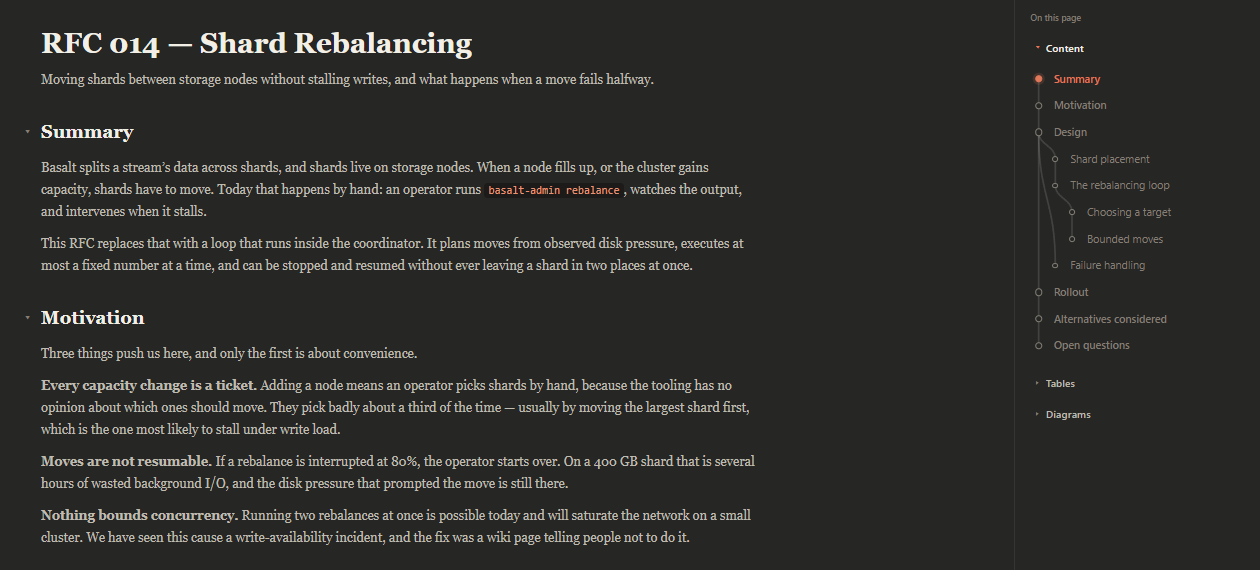
The outline is a graph, not a list.
Scrolled to a level-four heading inside a level-three inside a level-two. The path down to it is drawn, and so is everything hanging off it.
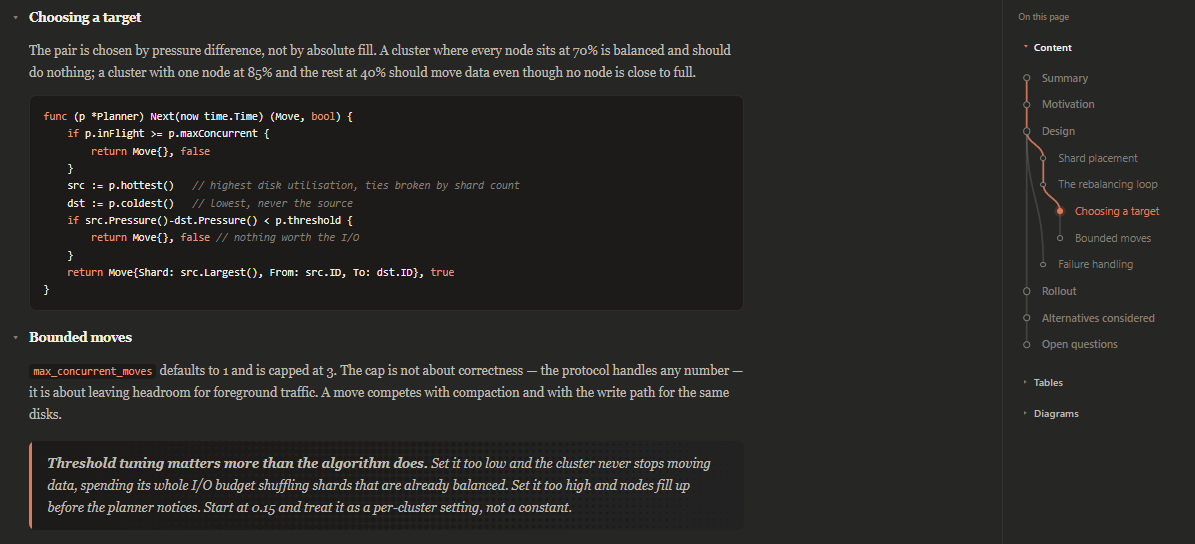 1
2
1
2
| 1 | The row you are reading is lit, and so is every section above it — one curve for each level the path passes through, so you can see how deep you are without counting indents. |
|---|---|
| 2 | Tables and diagrams keep their own outlines, folded behind their own headers until you want them. |
Ticking a box edits your file.
The runbook's pre-flight checks, source on the left and preview on the right at the same scroll position. Four ticked, two still open.
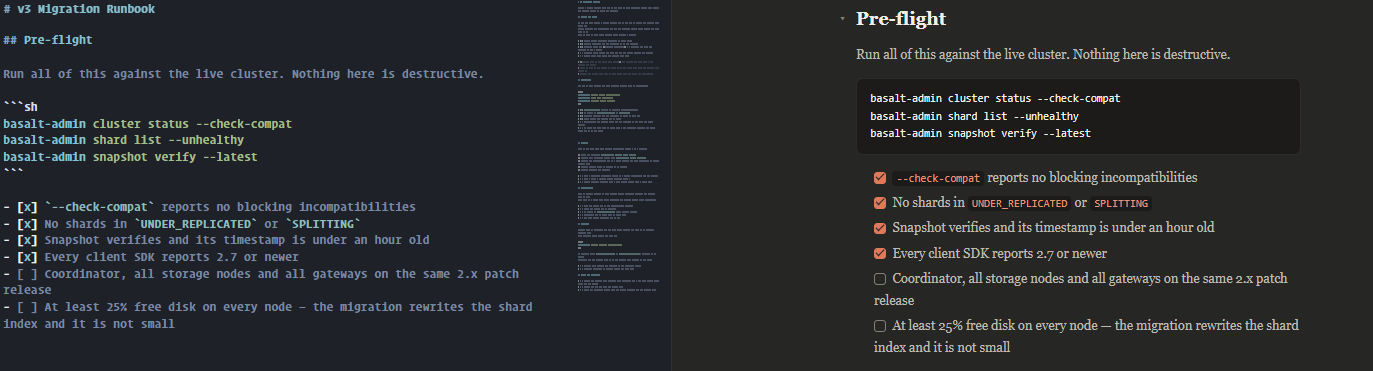 1
1
| 1 | Click a box in the preview and graphite.md rewrites the - [ ] line in the file on the left. There is no separate task list, so the two cannot drift apart. |
|---|
Rendered where you wrote them.
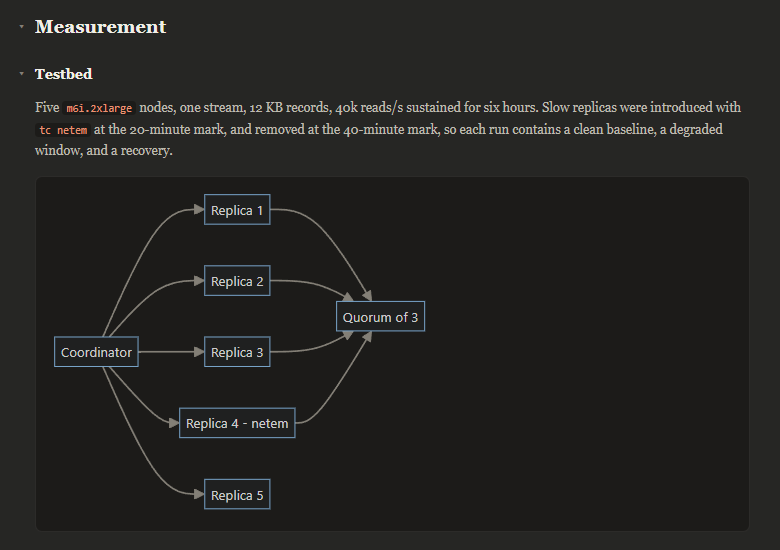
Two scroll positions of the same paper — $$…$$ at the model, a ```mermaid fence at the testbed.
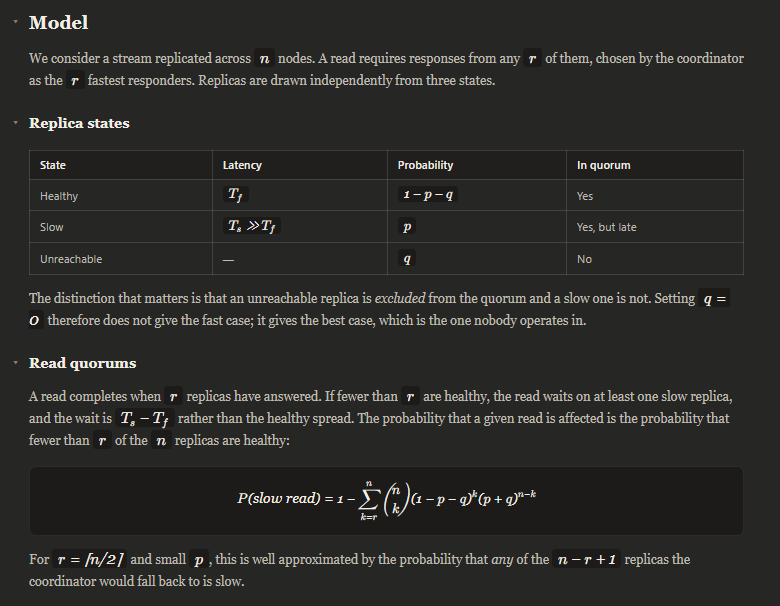 1
1
 2
2
| 1 | Display math, typeset by KaTeX. The same engine renders the inline $T_f$ and $p$ in the table above it. |
|---|---|
| 2 | A mermaid fence, drawn by Mermaid. Both ship inside the extension, so this is what the preview looks like with no network at all. |
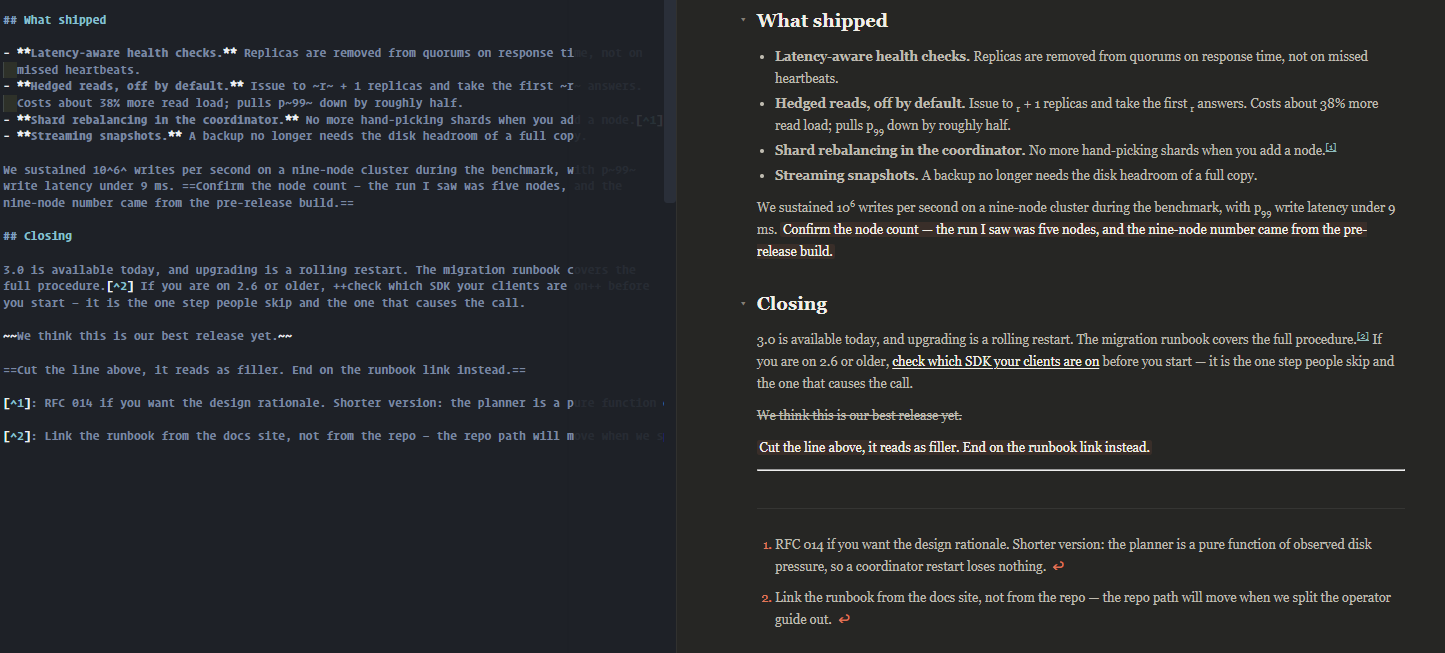
Edits read as edits.
An editor's pass on a launch post: cuts, additions and open questions all marked up in the source, all still legible in the preview.
 1
2
3
1
2
3
| 1 | A cut stays visible as strikethrough, so the edit is reviewable in the rendered document rather than only in the diff. |
|---|---|
| 2 | Anything still needing a decision is highlighted, and additions are underlined. Three review states, readable in place. |
| 3 | Footnotes link both ways — the ↩ at the end of a note returns to the sentence that cited it. |
The only capture with the editor in frame. The point is the correspondence between the markup on the left and the rendering on the right, which a preview-only crop would throw away.